
Steps for installing device42 appliance on Xen or KVM based platforms, if import disk image option is missing. Otherwise, refer to device42 xen/kvm install docs.
Download and bunzip2

Raw image for Xen/KVM has been compressed using bzip2. Once you get the file on kvm host, you can issue bunzip2
Install
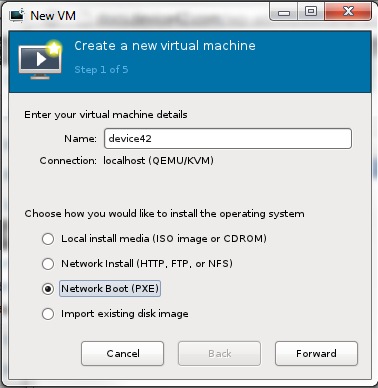
Once you unzip the downloaded raw image, create a new virtual machine. Choose Network Boot(we would add disk later). Please make sure you don't have some sort of automated network boot enabled for this machine. You would not see option to Import existing disk image.
Choosing OS and version

Choose Linux & Ubuntu 12.04 for Operating system type and version. If you don't see the option for 12.04, choose the latest version avaialble(as shown above).
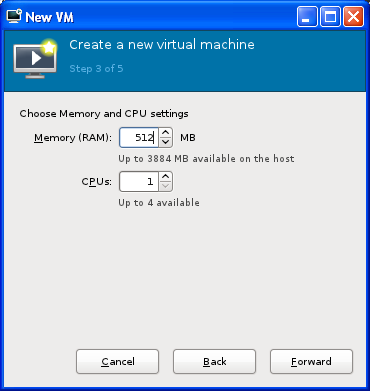
Choose 512MB RAM and 1 vCPU.
Choose disk(bunzipped file)
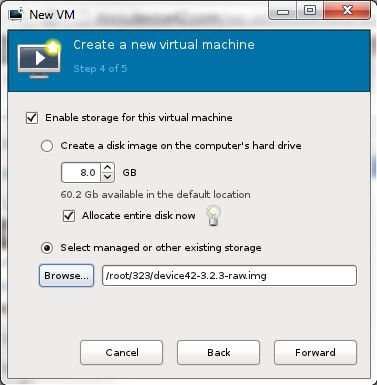
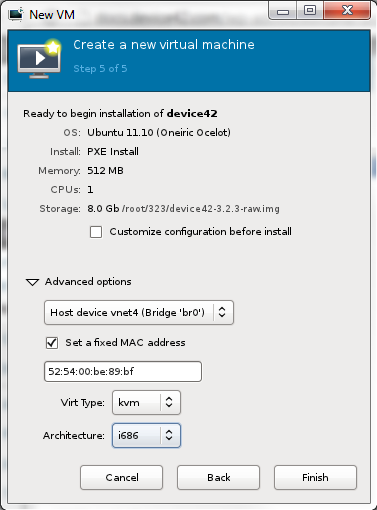
Choose your virtualization type from Advanced options and i686 as architecture and you are ready to go.
Disable network boot
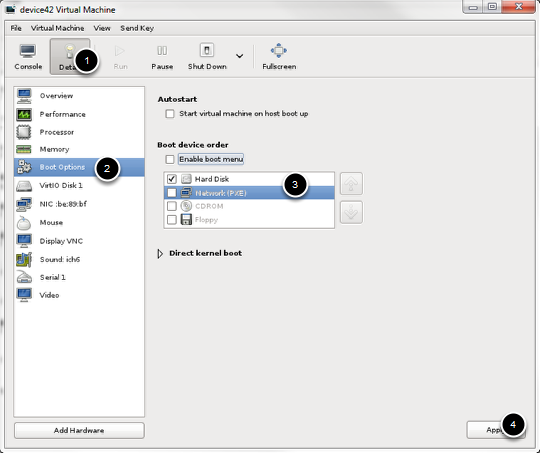
Details > Boot Options > Uncheck Network(PXE).
Setting up the appliance and logging in.
- Power on, if not already on.
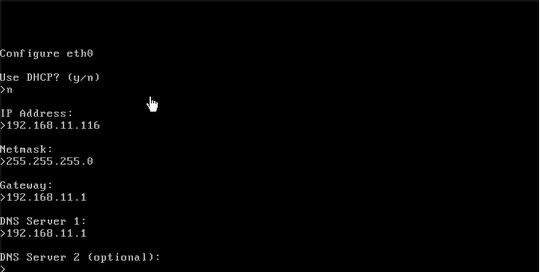
- On the console, configure IP and choose the settings you desire.
- Optional: Create DNS entry for the new IP address for new virtual appliance.
- Point your browser to http://FQDN(Fully Qualified Domain Name) or IP address and you are ready to go.
- Default username is admin and password is adm!nd42, please change that as soon as you login.
Above steps in images:
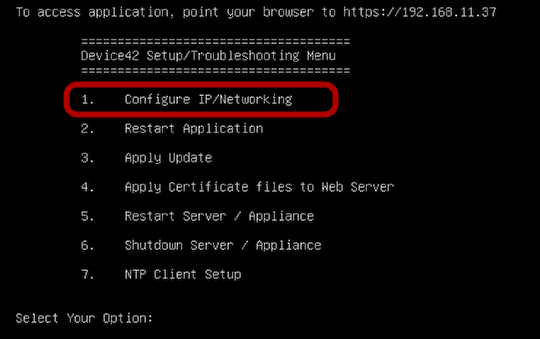
Configure Networking.
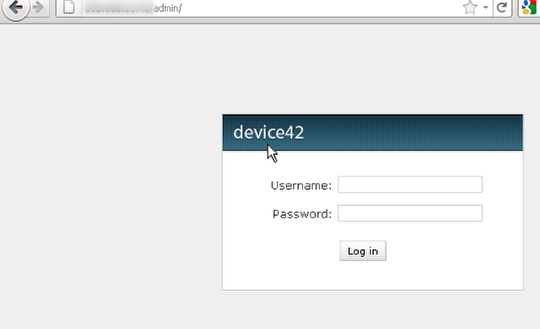
default username/password is admin/adm!nd42
Make sure to change it after you login.
Enjoy!


