
Devices can be converted into assets by using re-importable exports or by using the Device42 API. Please note that due to the differences between device and asset fields, not every property will be converted.
1. Export the devices you wish to convert by selecting them and using "Export Selected Items" option:

then use the "Re-Importable Export" option

2. Navigate to Tools > Imports/Exports and download the sample file for "Create Assets":

3. Open the exported device file and copy the API details from the asset sample file in rows 1 and 2:

4. Remove fields from the device file that are not compatible for assets. A "Type" field must also be provided for an asset which differs from the device type. Our API documentation displays the fields that are valid for assets - https://api.device42.com/#create-assets :
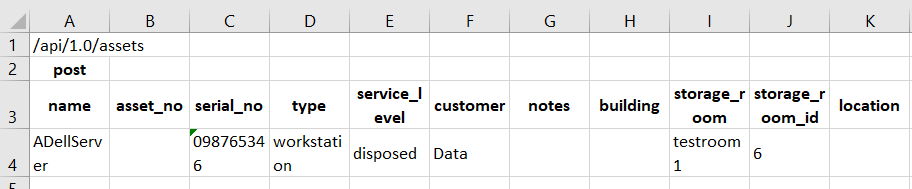
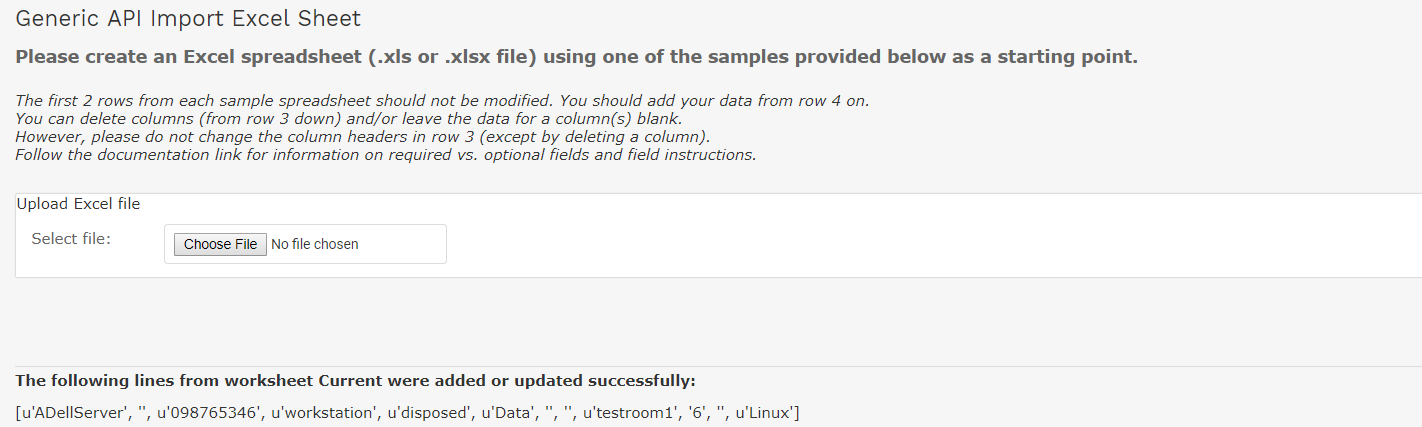
5. Import the updated file from Tools > Imports/Exports. You will see a list of the imported rows along with any errors if fields are missing:
6. Browse for the newly created asset:
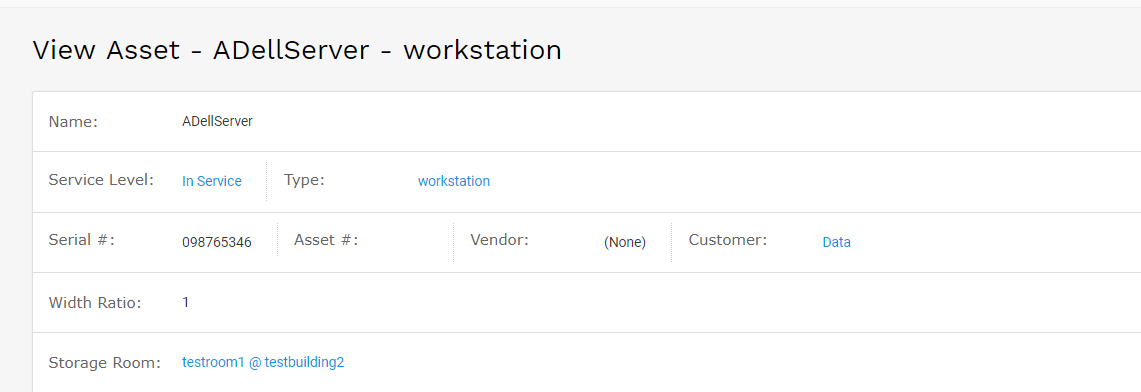
7. After the asset has been validated you can then search for and delete the original device record.


