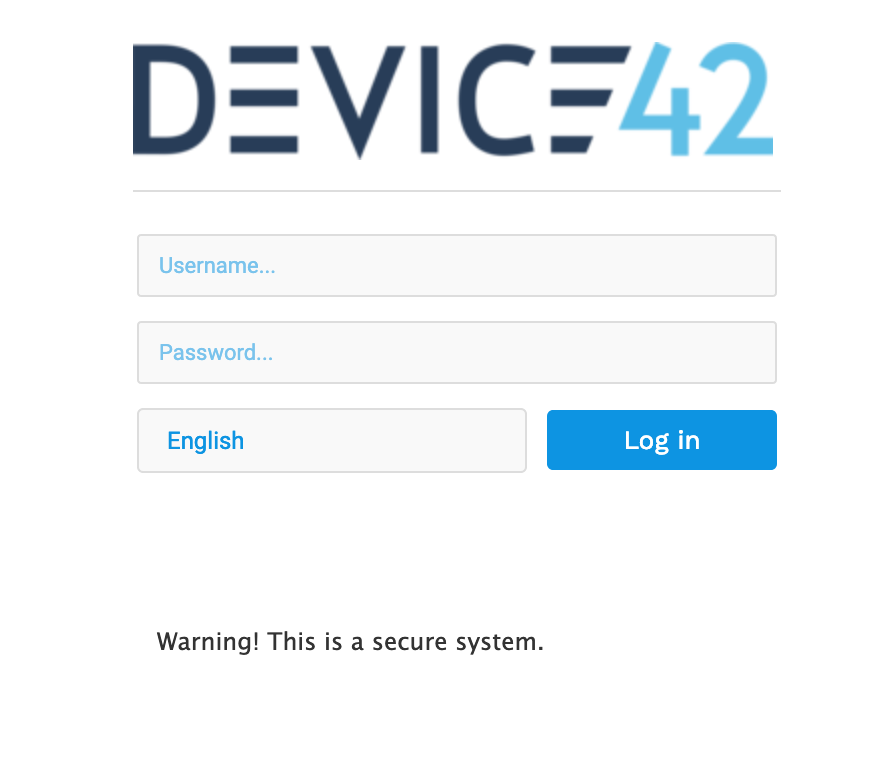
You can easily customize Device42 to include a custom logo or login banner.
Navigate to Tools >> Settings >> Global Settings
At the middle of the page under Login Screen you will see two options for "User Instructions" and "Logo":
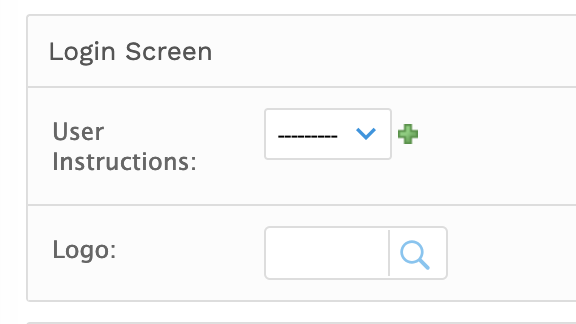
Add your company logo to Device42
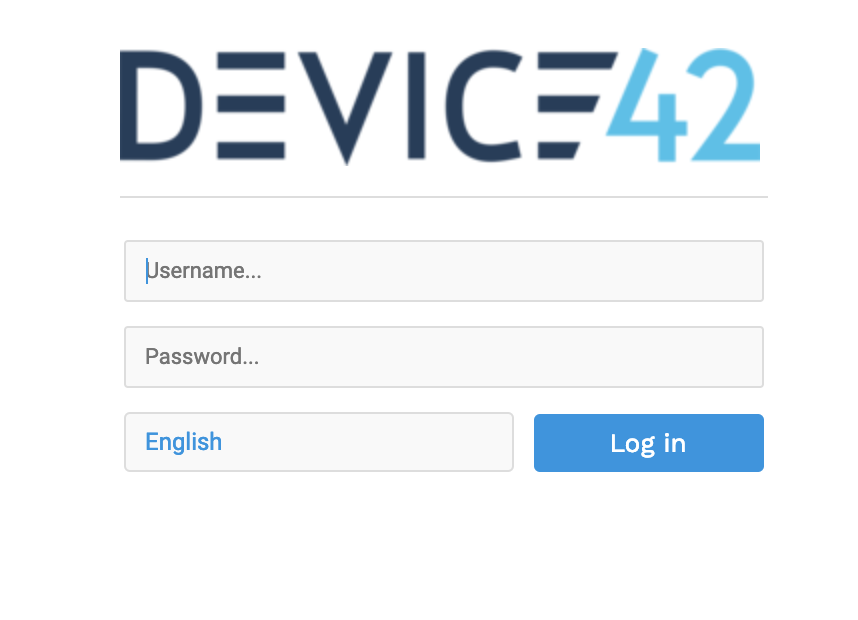
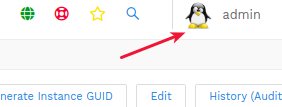
If you upload a logo, it will replace the Device42 logo on the login screen and through the application on the menu bar next to the user name…
Add user instructions to the login page
If you upload user instructions as a text file, they will appear on the login page as shown below…