
You will need to configure the following: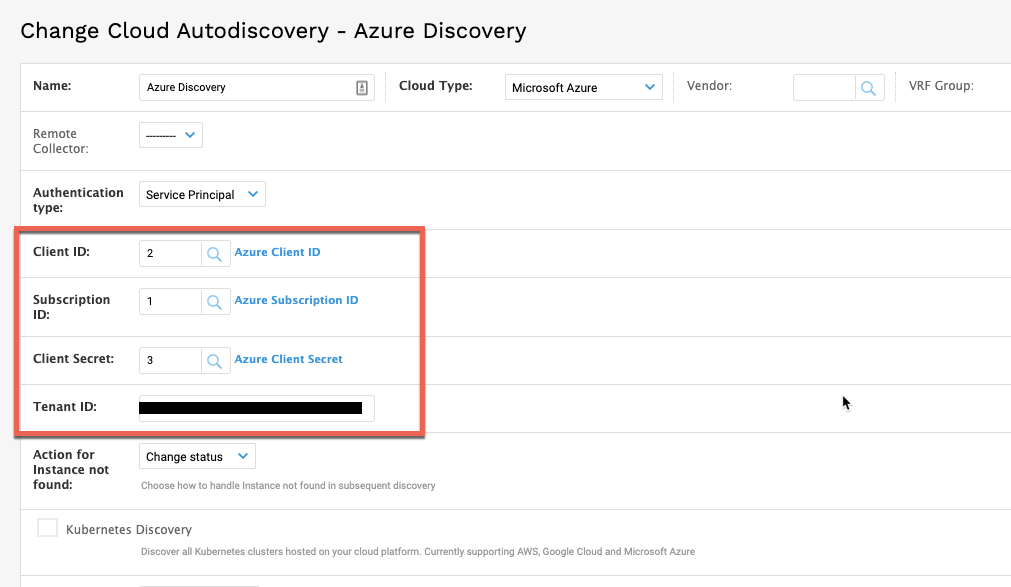
Subscription ID- you can get from:
1. Log on to the Azure portal.
2. In the left navigation panel, click Subscriptions. The list of your subscriptions is displayed along with the subscription ID.
Then, create an Application in Azure - instructions from Microsoft here: Create an Azure Active Directory Application.
After creating the application, you can get Client ID and Tenant ID from here: Values for Signing In.
For Client Secret - Create a new application secret
Finally, prior to running the discovery, you will need to “Assign reader role to the application”.
1. In the left pane of the Azure portal menu, select Subscriptions.
2. Select your subscription.
3. Select the Access Control (IAM) tab.
4. Select Add role assignment.
5. Assign the Reader role to the application.
Example here: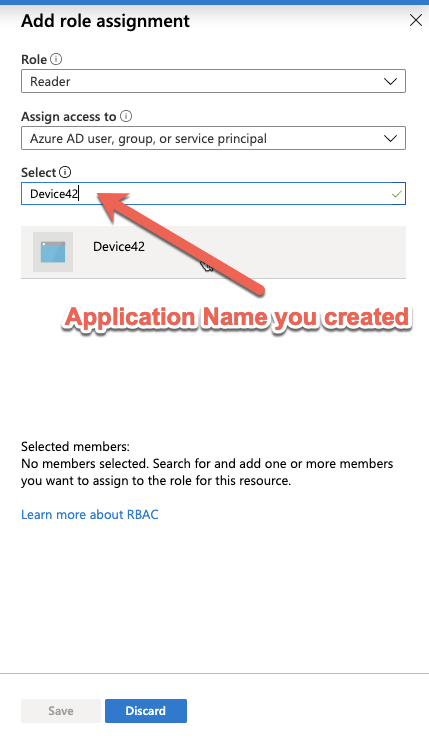
You should now be able to run Discovery and see your Azure resources.

