Sometimes when the blade chassis is discovered with all blades inside with corresponding slot's numbers and position, we are not seeing them when we click on the blade chassis layout.
This is because the slots on the hardware model is not mapped yet into their corresponding positions.
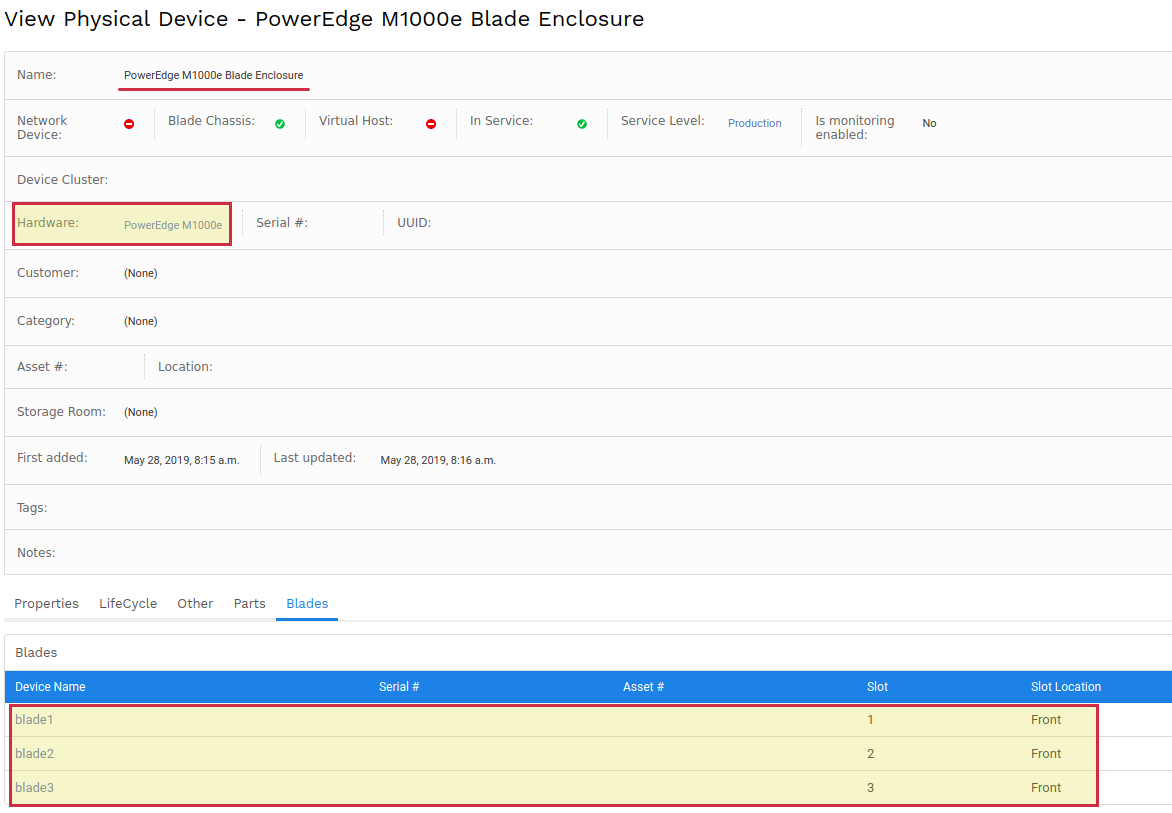
As an example let say we discovered a blade chassis, with three blades inside:
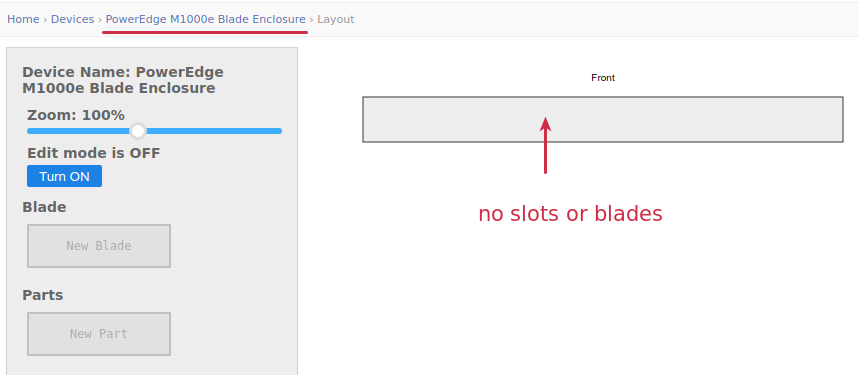
When we click on the blade chassis layout, there will be no blades shown or mapped on it:
To adjust this we need to edit the hardware model layout, by navigating to the hardware model settings page, there we will see all slots on the settings page:
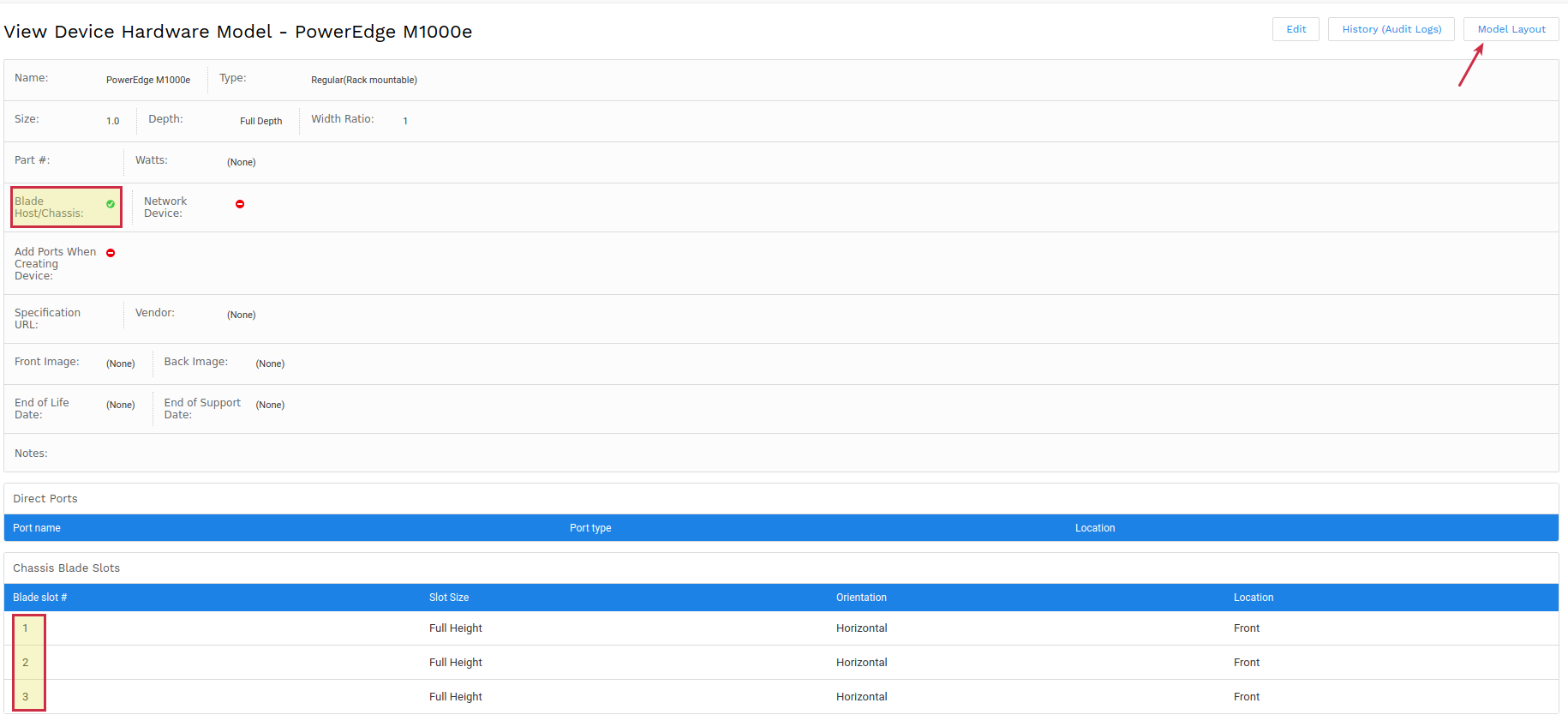
then by clicking on "Model Layout", we see that all slots not mapped yet
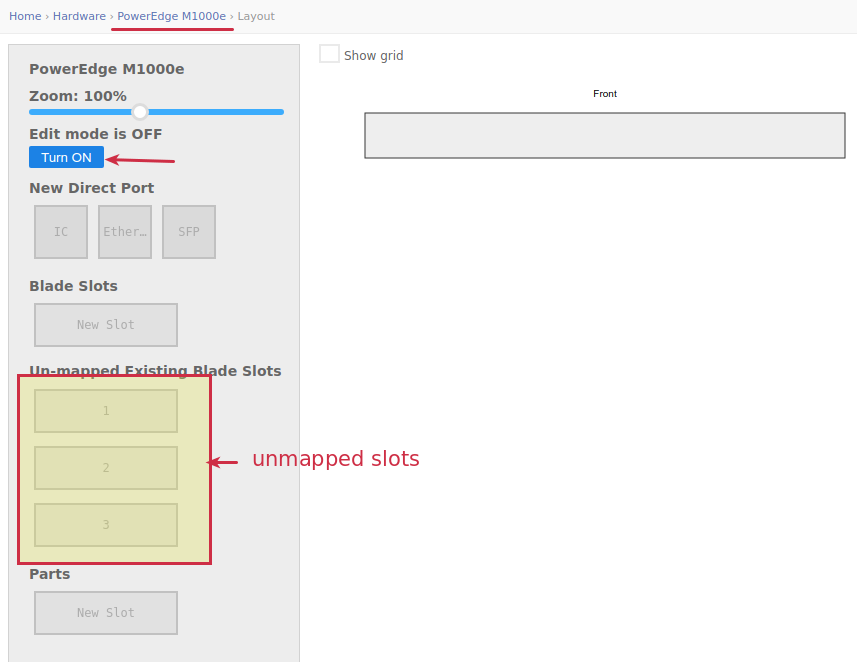
Click "Turn On" to enable the drag-drop possibility and map the slots into their position, let say we map two slots in this example and click "Save":
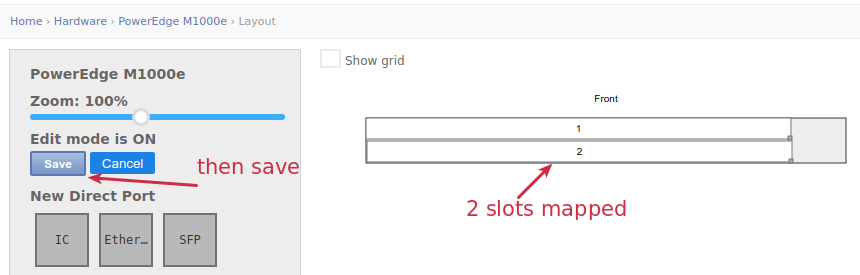
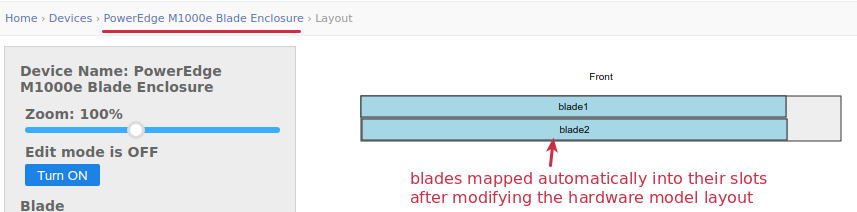
After this step we can simply navigate once again to the blade chassis layout and click on "Layout" and we will see all blades are automatically mapped into their slots: