
One of the well-known question asked by several customers is
“How to know from which job or how the device has been added on Device42”
Usually this information is kept under the history audit logs, which means we can grab that from there, but for sure if the logs have been deleted we will lose that information as well, but at least we can use the same method to check from which job the device has been updated.
We will list here the complete guide about how you can obtain this information.
On any device page we can click on the “History (Audit Logs)” button
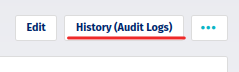
from the right-hand side of the screen. On the newly opened window we have two important columns:
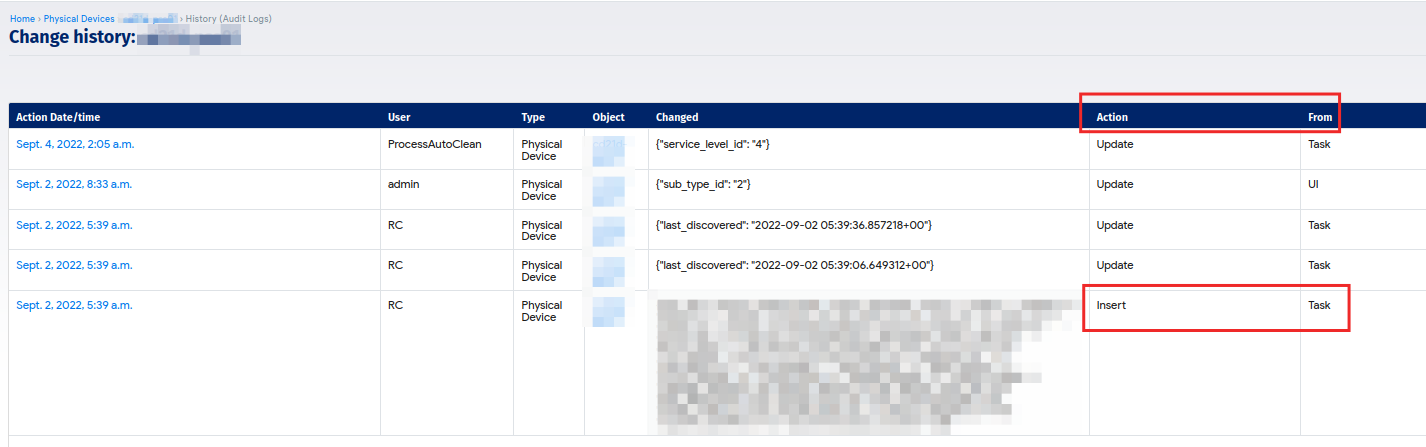
Action: which means what type of actions has been done on this device
From: The source of this action
Usually the first discovery evidence will be
Action -> Insert then From -> ad, remote, Task
All these words means auto discovery, usually ad will come for physical devices, Task for SNMP devices and remote for virtual devices, in any case, just remember these three words mean the device has been added from a discovery job.
Some examples with pictures


To know which discovery job is it, simply we need to use the time stamp from the left-hand side of the same window
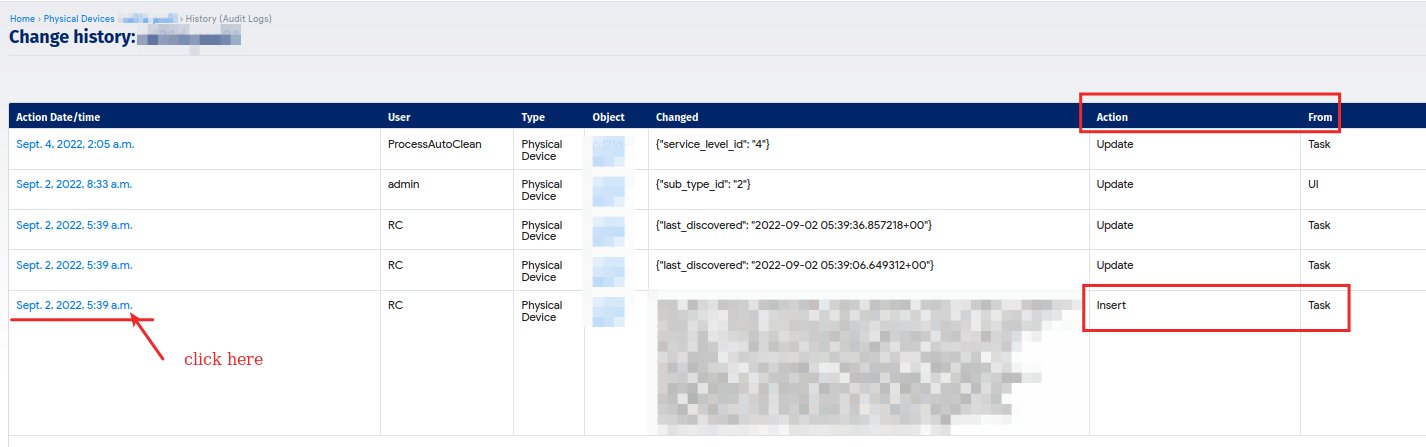
by clicking on it, we will redirected to a new windows where there is a field called “D42 URL:” which indicates what is the discovery job used here, and we can click on that link and redirected to the discovery job settings page
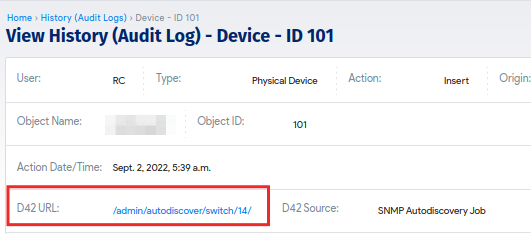
When the device has been added by an agent, we will have this on the history audit logs

And if it is added manually from the UI, we will have this

And finally from the API call



